Page Editor
The Page Editor of PUB HTML5 provides you with the ability to add and manage multimedia and other objects to/in the digital publication. You can add rich resources by clicking the "Edit Pages" button in the main toolbar. And after you finish adding multimedia, you just need to click "Save and exit".
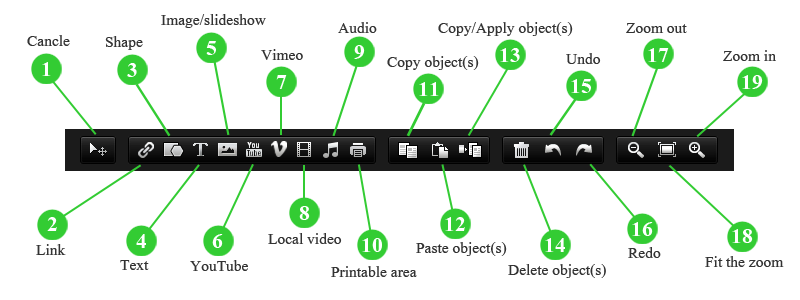

Contents of PUB HTML5 Page Editor
 Cancel
 Cancel
If you select one of the features on the toolbar but then you change your mind not to use it, you can click this "Cancel" button.
 Add Link
It is easy to add a link to the book page, and you can set the link area by dragging the box; define link properties such as color and select an Action Option: Go to page, Open a link, Call JavaScript function, Open Photo Slideshow and Play Audio.

 Insert Shapes
Insert different shapes to the page: line, arrow line, ellipse, rectangle and high-light area.

 Insert Text Displayer
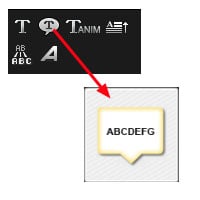
You can choose different Text Displayers and add to the publication pages: plain text, callout, text anim, dynamic text, Star Wars text and effect text. And you can preview the text effect by moving the mouse over the text displayer. Select a text displayer and input text, then you can set text properties.
 Insert Image Displayer
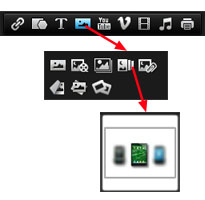
You can use image displayers to present you photos. There are different types of image displayers for you to choose: Common show, Embedded Slideshow, Alpha Transition Banner, Carousel Viewer, Clipart, Banner, Dynamic Turn Photo and Dynamic Show Photo.
 Add YouTube Video
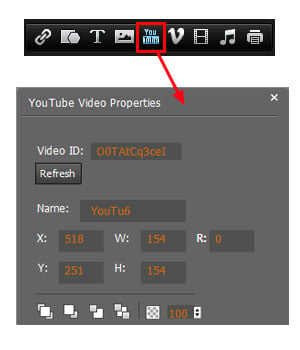
Click the YouTube icon and add it to the page, then input the video ID. For example, if the URL of your YouTube video is https://www.youtube.com/watch?v=nkJeyXzxSTE, then you just need to input the ID (nkJeyXzxSTE) to get it work in your publication.
 Add Vimeo Video
Click the Vimeo icon and add it to the page, then input the video ID.

 Add Local/Offline Video
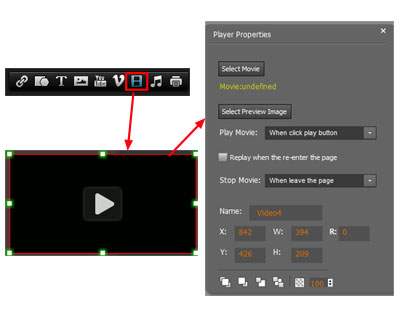
Click the Movie icon and add the video player to the page, and then select a video file (*.flv, *.f4v and *.mp4 only). You can define various settings: Player image, play and stop event, position, etc.
 Add Audio
You can select a sound player from the drop-down list and add it to the page, then select an audio file.

 Add Printable Area
Add printable area on the page and readers can print it out as coupon, you can define Title and Description.

 Copy Objects
Click to select objects (with CTRL key) and then click the Copy button to copy selected objects.
 Paste Objects
After you copy selected objects, you can click the Paste button to paste the selected objects to current page.
 Copy/Apply Objects
This button allows you to copy inserted objects and paste them to other pages.
 Delete Objects
If you don't want the objects you added onto the page, you can click the Delete button to remove selected objects.
 Undo
Undo
Undo button allows you to go back to previous setting.
 Redo
Redo
Redo button lets you redo the project.
 Zoom Out
If the page is too large, you can click Zoom Out button to shrink the page.
 Fit the Zoom
This button can help you adjust the page proportions to fit the Page Editor window.
 Zoom In
If the page is too small, you can click Zoom In button to enlarge the page.
In addition to the feature buttons in the toolbar, PUB HTML5 provides you with other tools to help you design your publication with ease.
 Page Manager

The Page Manager enables you to insert new pages, delete pages or rearrange the pages.
 Alignment Tools

The Alignment Tools help you align the inserted objects with ease: align to left/right/layers/bottom/center/middle.
 Reference Tools

The Reference Tools (Ruler and Grid) are quite useful while adding objects.
 Object Prioritizers
You can use these object prioritizers to decide which object display in the front or back.